


As an Amazon Associate, We earn from qualifying purchases.
Connecting your GE smart light bulb to Google Home is a straightforward process, primarily depending on whether your bulb is a Direct Connect model or requires the Cync app. Direct Connect GE bulbs pair directly with your Google Home app over Wi-Fi, offering immediate voice and app control. Cync (formerly C by GE) bulbs often benefit from being set up first through the Cync app, which then links to Google Home for enhanced features and reliability. This guide will walk you through the simple steps to integrate your GE lighting for convenient smart home control.
Welcome to the era of smart homes, where a simple voice command can transform your living space. If you’ve recently picked up some GE smart light bulbs and are wondering how to connect GE light bulb to Google Home, you’ve come to the right place! Integrating smart lighting into your Google Home ecosystem is a fantastic way to add convenience, ambiance, and a touch of futuristic flair to your daily life.
GE, a long-standing name in lighting, has embraced the smart home revolution with its Cync (formerly C by GE) line of smart lighting products. These bulbs offer a range of features, from dimming and color changes to schedules and routines. But getting them to play nicely with your Google Assistant can sometimes feel like a puzzle. Don’t worry, we’re here to demystify the process and guide you step-by-step on how to connect GE light bulb to Google Home, ensuring a smooth and successful setup.
Whether you have GE’s “Direct Connect” bulbs that link directly to your Wi-Fi or “Cync” bulbs that might use their own app and optional hub, this comprehensive guide will cover everything you need to know. Get ready to experience the magic of controlling your lights with just your voice or a tap on your phone!
Key Takeaways
- Understand Your GE Bulb Type: GE offers “Direct Connect” bulbs that link directly to Google Home via Wi-Fi, and “Cync” bulbs (formerly C by GE) which often integrate best when first set up through the Cync app.
- Direct Connect is Easiest: For GE Direct Connect bulbs, the connection process involves screwing in the bulb, opening your Google Home app, and following the “Set up new devices” prompts – no separate hub or app required.
- Cync App for Cync Bulbs: If you have Cync bulbs, especially older models or those with a Cync Hub, it’s generally recommended to set them up in the Cync app first, then link your Cync account to Google Home.
- Stable 2.4GHz Wi-Fi is Crucial: All GE smart bulbs, whether Direct Connect or Cync, rely on a stable 2.4GHz Wi-Fi network for communication with your Google Home system. Ensure your router supports this band.
- Proximity Matters: When setting up, keep your GE light bulb relatively close to your Wi-Fi router and your Google Home device for optimal signal strength and a smoother pairing process.
- Troubleshooting is Key: If you encounter issues, common solutions include resetting the bulb, checking Wi-Fi connectivity, ensuring the bulb is powered on, and verifying Google Home app permissions.
- Unlock Full Potential: Once connected, leverage Google Home’s features like routines, schedules, and voice commands to fully personalize and automate your GE smart lighting experience.
Quick Answers to Common Questions
Can all GE light bulbs connect to Google Home?
No, only GE’s smart light bulbs (under the Cync brand, formerly C by GE) are designed to connect to Google Home. Traditional incandescent or standard LED GE bulbs are not smart and cannot be connected.
Do I need a hub to connect my GE light bulb to Google Home?
Many newer GE Cync smart bulbs, especially those labeled “Direct Connect,” do not require a separate hub. They connect directly to your 2.4GHz Wi-Fi network and then to Google Home. Older Cync bulbs or those requiring advanced features might benefit from the Cync Hub, but it’s often optional.
What if my GE light bulb isn’t discovered by Google Home?
First, ensure the bulb is powered on and in pairing mode (often indicated by flashing). Try resetting the bulb by cycling its power 5 times. Also, check your Wi-Fi connection (ensure it’s 2.4GHz) and that your Google Home device is nearby and working correctly.
Can I control my GE light bulb with voice commands after connecting it to Google Home?
Yes, absolutely! Once your GE light bulb is successfully connected to Google Home, you can use Google Assistant voice commands to turn it on/off, dim it, change colors (if applicable), and include it in routines.
What Wi-Fi band do GE smart bulbs use?
GE smart bulbs, like most smart home devices, primarily use the 2.4GHz Wi-Fi band. Ensure your home router is broadcasting a stable 2.4GHz signal for successful connection and reliable performance.
📑 Table of Contents
- Understanding GE Smart Bulbs and Google Home Compatibility
- Prerequisites for Connecting GE Bulbs to Google Home
- Method 1: Connecting Direct Connect GE Bulbs to Google Home (No Hub Needed)
- Method 2: Connecting Cync/C by GE Bulbs via the Cync App (Recommended for Some Models)
- Troubleshooting Common Connection Issues
- Tips for Maximizing Your GE Smart Lighting Experience with Google Home
- Conclusion
Understanding GE Smart Bulbs and Google Home Compatibility
Before we dive into the connection steps, it’s helpful to understand the different types of GE smart bulbs you might encounter and how they interact with Google Home. GE has a few variations under its Cync brand, and knowing which one you have can make a big difference in your setup process.
GE Direct Connect vs. Cync Bulbs
- GE Direct Connect Smart Bulbs: These are often the easiest to set up. As their name suggests, “Direct Connect” bulbs are designed to connect directly to your home’s Wi-Fi network (typically 2.4GHz) and then directly to the Google Home app. They don’t require a separate hub or even the Cync app for basic control through Google Home. This is a fantastic option if simplicity is your priority when you connect GE light bulb to Google Home.
- Cync (formerly C by GE) Smart Bulbs: These bulbs might be a bit older or designed with the Cync ecosystem in mind. While many newer Cync bulbs also support Direct Connect, some might still benefit from (or require) initial setup through the Cync app. The Cync app offers more granular control over specific bulb features and can serve as a bridge to Google Home. If you have a Cync Smart Hub, these bulbs would connect to the hub, and then the hub’s integration with Google Home would allow control. However, many newer Cync bulbs are now hub-optional, making the setup process similar to Direct Connect.
How Google Home Integrates with GE Lighting
Google Home acts as your central command center for all your smart devices. When you connect GE light bulb to Google Home, you’re essentially linking the bulb’s control capabilities to Google Assistant. This allows you to:
- Use Voice Commands: “Hey Google, turn on the living room light.”
- Control via Google Home App: Adjust brightness, change colors, or turn lights on/off from anywhere using the app.
- Create Routines: Set your lights to turn on automatically when you wake up or dim when it’s movie time.
- Group Lights: Control multiple GE bulbs as a single entity (e.g., “turn off all bedroom lights”).
The key takeaway here is that Google Home provides a unified interface, regardless of how your GE bulb initially connects. The goal is to get your GE smart bulb recognized by the Google Home system, and we’ll show you how.
Prerequisites for Connecting GE Bulbs to Google Home
Before you jump into connecting your GE light bulb to Google Home, a little preparation goes a long way. Ensuring you have these items and settings in place will make the setup process much smoother.
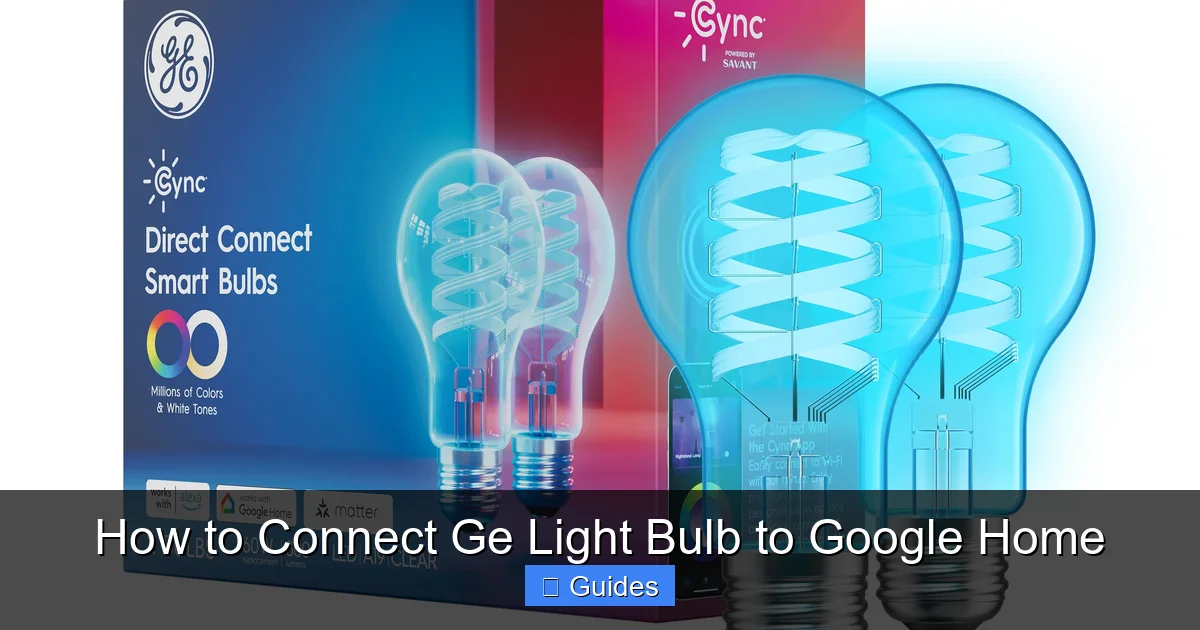
Visual guide about How to Connect Ge Light Bulb to Google Home
Image source: shop.gelighting.com
What You’ll Need:
- GE Smart Light Bulb(s): Make sure they are powered on and screwed into a fixture.
- A Google Home Device: This could be a Google Nest Mini, Google Nest Hub, or any Google Assistant-enabled speaker or display. Ensure it’s already set up and connected to your Wi-Fi network.
- Google Home App: Installed on your smartphone or tablet (available for iOS and Android). Ensure it’s updated to the latest version.
- A Stable Wi-Fi Network: GE smart bulbs primarily use the 2.4GHz Wi-Fi band. Most modern routers offer both 2.4GHz and 5GHz. Ensure your 2.4GHz band is enabled and working well. You’ll need your Wi-Fi network name (SSID) and password handy.
- The Cync App (Optional, but Recommended for Cync Bulbs): If you have Cync bulbs, especially if you want to use advanced Cync-specific features or have older Cync models, downloading and setting up the Cync app first can be beneficial.
Important Wi-Fi Considerations
Your Wi-Fi network is the backbone of your smart home. Here are a few things to keep in mind when you connect GE light bulb to Google Home:
- 2.4GHz Band: GE smart bulbs are designed to work on the 2.4GHz Wi-Fi band, which offers better range but lower speeds than 5GHz. Make sure your router is broadcasting a 2.4GHz signal. Some routers combine both bands under a single name (SSID); this is usually fine, but if you have trouble, try separating them temporarily.
- Network Stability: A weak or unstable Wi-Fi signal can lead to connectivity issues. Try to set up your bulbs relatively close to your Wi-Fi router and Google Home device initially.
- No Public Wi-Fi: Smart bulbs cannot connect to public Wi-Fi networks that require browser-based logins or have enterprise-level security protocols.
Once you’ve checked off these prerequisites, you’re ready to proceed with connecting your GE light bulb to Google Home!
Method 1: Connecting Direct Connect GE Bulbs to Google Home (No Hub Needed)
This is the simplest and most common method for newer GE smart bulbs labeled “Direct Connect” or “Wi-Fi enabled.” It requires no separate hub or even the Cync app for basic control.
Step-by-Step Guide for Direct Connect Bulbs
- Power On Your GE Bulb: Screw your GE Direct Connect smart light bulb into a fixture and ensure the power switch for that fixture is in the “ON” position. The bulb should light up, possibly flashing to indicate it’s in pairing mode. If it doesn’t flash, try turning the bulb off and on several times (typically 5 times, leaving it on for a few seconds each time) until it starts pulsing or flashing. This resets it to pairing mode.
- Open the Google Home App: On your smartphone or tablet, open the Google Home app. Make sure you’re logged into the correct Google account associated with your Google Home devices.
- Start the Setup Process:
- Tap the “plus” sign (+) in the top-left corner of the app.
- Select “Set up device.”
- Choose “New devices” (or “New devices in your home” for older app versions).
- Select Your Home: The app will ask you to select which “home” you want to add the device to. Choose the appropriate home.
- Scan for Devices: Your Google Home device will now start scanning for nearby compatible smart devices in pairing mode. It should discover your GE smart light bulb. This might take a few moments.
- Identify Your Bulb: When discovered, the GE bulb might appear as a generic “Light” or with a specific GE identifier. Tap on the device you want to set up.
- Assign to a Room: The app will ask you to assign the bulb to a specific room (e.g., Living Room, Bedroom). This is important for voice commands (e.g., “Hey Google, turn on the bedroom light”). You can also create a new room if needed.
- Give Your Bulb a Name: Give your GE light bulb a descriptive name that you’ll use for voice commands (e.g., “Desk Lamp,” “Ceiling Light”). Keep it simple and easy to remember.
- Connect to Wi-Fi: The app will prompt you to connect the bulb to your Wi-Fi network. Select your 2.4GHz Wi-Fi network from the list and enter your Wi-Fi password.
- Complete Setup: Once connected, the Google Home app will confirm that your GE light bulb is set up. You can now test it!
Testing Your Direct Connect GE Bulb
After successfully connecting your GE light bulb to Google Home:
- Voice Command: Say, “Hey Google, turn on [bulb name],” or “Hey Google, set [bulb name] to 50% brightness.”
- App Control: Tap on the light bulb icon in the Google Home app to toggle it on/off or adjust its settings.
Congratulations, you’ve successfully learned how to connect GE light bulb to Google Home without any extra apps or hubs!
Method 2: Connecting Cync/C by GE Bulbs via the Cync App (Recommended for Some Models)
For some Cync (formerly C by GE) bulbs, especially if you want access to advanced Cync-specific features or if you have an older Cync bulb that isn’t “Direct Connect,” setting them up through the Cync app first and then linking your Cync account to Google Home can be the best approach. Even newer Cync bulbs can be managed this way, giving you two avenues of control.
Part 1: Setting Up Your GE Bulb in the Cync App
- Install the Cync App: Download the Cync app from the App Store (iOS) or Google Play Store (Android).
- Create/Log In to Your Cync Account: Open the app and follow the prompts to create a new account or log in if you already have one.
- Power On Your GE Bulb: Screw your Cync smart light bulb into a fixture and ensure the power is on. The bulb should light up and may flash, indicating it’s ready for pairing. If not, cycle the power (off for 2 seconds, on for 8 seconds, repeat 5 times) to reset it.
- Add Device in Cync App:
- In the Cync app, tap the “plus” sign (+) in the top-right corner.
- Select “Add Devices.”
- Choose “Lights” from the list of device types.
- The app will guide you through selecting the type of light (e.g., A19, BR30).
- Follow In-App Instructions: The Cync app will use Bluetooth to discover your bulb and guide you through connecting it to your 2.4GHz Wi-Fi network. You’ll likely be asked to confirm the bulb’s flashing status and name it.
- Complete Cync Setup: Once the bulb is successfully added to the Cync app, you should be able to control it directly from within the Cync app.
Part 2: Linking Your Cync Account to Google Home
Now that your GE bulbs are set up in the Cync app, you can easily link the Cync service to your Google Home account.
- Open the Google Home App: On your smartphone or tablet, open the Google Home app.
- Start Linking Process:
- Tap the “plus” sign (+) in the top-left corner.
- Select “Set up device.”
- Choose “Works with Google.” (This is for connecting services, not new individual devices directly.)
- Search for “Cync”: In the “Works with Google” list, scroll down or use the search icon to find “Cync” (or “C by GE” if you’re using an older version or specific integration).
- Link Your Account: Tap on “Cync.” The app will redirect you to the Cync login page. Enter your Cync account credentials (the same ones you used for the Cync app) and authorize the connection.
- Assign Devices to Rooms: Once linked, your GE bulbs from the Cync account will appear in the Google Home app. You’ll be prompted to assign them to specific rooms within your Google Home setup.
- Name Your Bulbs: Give your GE bulbs clear, distinct names for voice control. You might already have names from the Cync app, and Google Home will usually import them.
Testing Your Cync-Connected GE Bulb
Just like with Direct Connect bulbs, you can now test your Cync-connected GE bulbs:
- Voice Command: “Hey Google, turn off the kitchen lights.”
- App Control: Use the Google Home app to adjust your GE lights.
By following these steps, you’ve successfully learned how to connect GE light bulb to Google Home, even if it uses the Cync app as an intermediary.
Troubleshooting Common Connection Issues
Even with the best instructions, sometimes technology throws a curveball. If you’re having trouble connecting your GE light bulb to Google Home, don’t despair! Here are some common issues and their solutions.
Bulb Not Discovered or App Errors
- Check Power: Ensure the light switch controlling the bulb is physically in the “ON” position. Seems obvious, but it’s a common oversight!
- Reset the Bulb: Most GE smart bulbs can be reset to factory settings, which puts them back into pairing mode. The typical method is to turn the bulb off for 2 seconds, then on for 8 seconds, repeating this 5 times. The bulb will usually flash or pulse to indicate a successful reset.
- Proximity to Wi-Fi and Google Home: Make sure the GE light bulb is within a reasonable range of your Wi-Fi router and your Google Home device during setup. Walls and other obstacles can interfere with the signal.
- Confirm 2.4GHz Wi-Fi: Double-check that your smartphone and the GE bulb are trying to connect to a 2.4GHz Wi-Fi network. If your router has separate SSIDs for 2.4GHz and 5GHz, ensure you’re on the 2.4GHz one.
- Restart Router and Google Home: A simple restart of your Wi-Fi router and your Google Home speaker/display can often resolve temporary network glitches.
- Force Close & Reopen Apps: Close both the Google Home app and (if applicable) the Cync app completely, then reopen them and try again.
- Check Google Home App Permissions: Ensure the Google Home app has necessary permissions on your phone, especially location services, which can be crucial for discovering nearby devices.
Bulb Shows as “Offline” After Setup
- Wi-Fi Signal Strength: The bulb might be connected but have a weak Wi-Fi signal. Try moving the bulb closer to the router or consider a Wi-Fi extender.
- Network Congestion: Too many devices on your Wi-Fi network can sometimes cause issues. Try temporarily disconnecting other devices to see if connectivity improves for your GE light bulb.
- Router Settings: Some advanced router settings (like AP isolation, firewall rules, or specific port blocking) can interfere with smart device communication. If you’re comfortable, check your router’s documentation or consult your ISP.
- Firmware Updates: Ensure your Google Home device and, if applicable, your Cync bulbs have the latest firmware. Updates often fix connectivity bugs.
Patience is key when troubleshooting! Try one solution at a time and re-attempt the connection process. In most cases, one of these steps will help you successfully connect GE light bulb to Google Home.
Tips for Maximizing Your GE Smart Lighting Experience with Google Home
Once you’ve mastered how to connect GE light bulb to Google Home, the real fun begins! Google Home offers a plethora of features that can elevate your smart lighting experience. Here are some tips to get the most out of your GE smart bulbs.
1. Group Your Lights for Easy Control
If you have multiple GE bulbs in one room or area, group them together in the Google Home app. This allows you to control all of them with a single command.
- How to Group:
- Open the Google Home app.
- Tap on one of the GE light bulbs you want to group.
- Tap the settings icon (gear).
- Look for “Add to a room” or “Add to group.” If the bulbs are already in the same room, you can often control them all by saying, “Hey Google, turn on the lights in [room name].”
- For more granular control over specific groups within a room (e.g., “reading lights”), you might create a custom group under “Household devices” and name it accordingly.
Example: “Hey Google, turn on the living room lights.”
2. Create Custom Routines
Google Home Routines are incredibly powerful for automating your smart lights. You can combine multiple actions, including controlling your GE light bulb to Google Home, based on a trigger (time of day, voice command, or even presence detection).
- Ideas for Routines:
- “Good Morning” Routine: At 7 AM, gradually turn on your bedroom GE lights to 50% brightness, play the news, and start the coffee maker.
- “Movie Night” Routine: When you say “Hey Google, movie time,” dim your living room GE lights to 20% and turn on the TV.
- “Good Night” Routine: Turn off all lights, lock the doors, and set the thermostat when you say “Good night.”
To set up a routine, go to the Google Home app, tap “Routines,” and then the “plus” sign (+) to create a new one.
3. Master Voice Commands
Voice commands are the most intuitive way to interact with your GE light bulb once it’s connected to Google Home. Here’s a quick rundown of useful commands:
- “Hey Google, turn on [light name].”
- “Hey Google, turn off [light name].”
- “Hey Google, dim [light name] to 30%.”
- “Hey Google, brighten [light name].”
- “Hey Google, set [light name] to warm white.” (For color-changing bulbs)
- “Hey Google, change [light name] to blue.” (For color-changing bulbs)
- “Hey Google, turn on all the lights in the [room name].”
4. Set Schedules and Timers
Beyond routines, you can set simple schedules for individual lights or groups directly through the Google Home app or even with voice commands.
- “Hey Google, turn on the porch light at sunset.”
- “Hey Google, turn off the kitchen light in 30 minutes.”
This is especially useful for security when you’re away, making it look like someone is home.
5. Explore Ambiance Settings
For GE color-changing bulbs, experiment with different color temperatures and hues to match your mood or activity. Google Home allows you to select specific colors or use general terms like “warm white,” “cool white,” or “daylight.”
By leveraging these features, your GE smart light bulb will become an indispensable part of your Google Home ecosystem, offering comfort, control, and efficiency.
Conclusion
You’ve made it! By following this guide, you now know precisely how to connect GE light bulb to Google Home, whether you have a Direct Connect model or a Cync bulb. We’ve covered the crucial prerequisites, detailed the setup steps for both major GE bulb types, and provided essential troubleshooting tips to overcome common hurdles. More importantly, you’re now equipped with the knowledge to maximize your smart lighting experience, transforming simple bulbs into intelligent tools that respond to your voice and routines.
Integrating your GE smart lights into Google Home brings a new level of convenience and personalization to your living space. From subtle ambiance adjustments to grand automated routines, your smart home just got a whole lot brighter and more responsive. Enjoy the ease and control that comes with a perfectly connected smart lighting system!
🎥 Related Video: C by GE – How to Set Up Your C by GE Light Bulbs with Your Google Voice Assistant
📺 GE Lighting, a Savant company
1. Screw in the bulb 2. Turn on the light 3. Open the Google Home App and add your devices Learn more at cbyge.com.
Frequently Asked Questions
What’s the difference between GE Direct Connect and Cync bulbs?
GE Direct Connect bulbs are designed to link directly to your home’s 2.4GHz Wi-Fi network and then to the Google Home app, requiring no additional apps or hubs for basic control. Cync bulbs (formerly C by GE) are part of GE’s broader smart home ecosystem and might be set up first through the Cync app, which then links to Google Home. Many newer Cync bulbs now also support Direct Connect.
Do I need the Cync app if I have Google Home?
If you have GE Direct Connect bulbs, you usually don’t need the Cync app for basic control through Google Home. However, for Cync-branded bulbs, the Cync app can offer more advanced features, firmware updates, and specific Cync ecosystem integrations, which you might want to use even if you primarily control them via Google Home.
Can I connect GE outdoor smart lights to Google Home?
Yes, if GE offers specific outdoor smart lighting products under their Cync brand, they should be connectable to Google Home using similar methods as indoor bulbs (either Direct Connect or via the Cync app). Always check the product specifications for compatibility and ensure adequate Wi-Fi coverage outdoors.
How do I reset my GE smart bulb?
To reset most GE smart bulbs, turn the light switch OFF for 2 seconds, then ON for 8 seconds. Repeat this cycle 5 times. The bulb should flash or pulse to confirm it has been reset to factory defaults and is ready for pairing.
Can I group multiple GE bulbs in Google Home?
Yes, you can easily group multiple GE smart bulbs in the Google Home app. This allows you to control all bulbs within a designated room or a custom group with a single voice command or tap in the app, such as “Hey Google, turn on the living room lights.”
Is there a limit to how many GE bulbs I can connect to Google Home?
While there isn’t a strict universal limit imposed by Google Home for smart devices, practical limitations can arise from your Wi-Fi network’s capacity and your router’s ability to handle numerous connected devices efficiently. Most home networks can comfortably support dozens of smart bulbs without issues, but extremely large installations might require network optimization.
