


As an Amazon Associate, We earn from qualifying purchases.
Experiencing issues with your smart light bulb? Don’t worry, a reset often fixes common problems like connectivity woes or unresponsiveness. The most frequent method involves a specific on-off power cycle using a standard light switch, which helps clear settings and prepare the bulb for re-pairing. However, specific brands like Philips Hue or TP-Link Kasa might have unique procedures, sometimes involving their dedicated apps. This guide will show you how to reset a smart light bulb effectively and troubleshoot common issues.
How to Reset Smart Light Bulb
Smart light bulbs have revolutionized the way we illuminate our homes, offering unparalleled convenience, ambiance, and energy efficiency. With just a tap on your phone or a simple voice command, you can change colors, dim the lights, or set schedules. They are truly brilliant pieces of technology that make our lives a little brighter and a lot smarter.
However, like all technology, smart light bulbs can sometimes be a bit temperamental. You might run into situations where your bulb isn’t responding to commands, struggles to connect to your Wi-Fi network, or simply won’t perform as expected. When these glitches occur, it can be incredibly frustrating, turning your smart home dream into a minor tech nightmare. But before you throw your hands up in despair or consider replacing the bulb, there’s a powerful and often overlooked solution: learning how to reset your smart light bulb.
Resetting a smart light bulb is like giving it a fresh start. It clears out all its previous settings, network configurations, and any lingering bugs, returning it to its factory default state. This process is essential for troubleshooting connectivity problems, preparing a bulb for a new network, or even wiping its data before you sell or give it away. This comprehensive guide will walk you through the ins and outs of resetting your smart light bulb, covering general methods, brand-specific instructions, and crucial troubleshooting tips to get your lights back on track.
Key Takeaways
- Why Reset: Resetting your smart light bulb is often the first step to fix connectivity issues, unresponsiveness, or preparing it for a new network or owner.
- General On-Off Method: Many smart bulbs can be reset by performing a consistent on-off power cycle (e.g., 5 seconds on, 5 seconds off, repeated 3-5 times) using a standard wall switch.
- Brand-Specific Procedures: Popular brands like Philips Hue, TP-Link Kasa, Sengled, and Govee often have unique reset sequences or require their respective mobile apps for a full factory reset.
- Visual Confirmation: A successful reset is typically indicated by the bulb flashing, changing colors (often to white or a specific color), or dimming, signaling it’s in pairing mode.
- App-Based Unpairing: Sometimes, simply removing or “unpairing” the bulb from its app (e.g., Philips Hue app) is enough to clear its connection without a full physical reset, especially if you’re just moving it.
- Troubleshooting After Reset: If issues persist after a reset, check your Wi-Fi network (2.4GHz band), router, and ensure your app and bulb firmware are up to date before seeking further support.
- When to Replace: If a smart bulb consistently fails to reset or function correctly after multiple attempts and troubleshooting, it might be time to consider replacing it.
Quick Answers to Common Questions
How do I force my smart bulb into pairing mode?
Most smart bulbs can be forced into pairing mode by performing a factory reset. This usually involves a specific on-off power cycle (e.g., 3-5 times, 5 seconds on, 5 seconds off) using a standard light switch until the bulb flashes or changes color, indicating it’s ready to connect.
Will resetting my smart bulb delete my firmware updates?
No, resetting a smart light bulb to factory defaults typically does not roll back or delete its firmware updates. It only clears the stored network configurations and user settings, leaving the bulb’s operating system (firmware) intact at its current version.
What if my smart bulb won’t flash after trying to reset it?
If your smart light bulb doesn’t flash after a reset attempt, double-check the timing and number of cycles. Ensure you’re using a standard light switch, not a dimmer. If it’s brand-specific, verify you followed the exact procedure for that model. Try again, being very precise.
Can I reset a smart bulb without a physical light switch?
Some smart bulbs, like Philips Hue, can be “reset” (unpaired) via their dedicated app or a smart dimmer switch. However, for many generic Wi-Fi bulbs that rely on power cycling, a physical light switch is essential for a true hard reset. You cannot typically hard reset them by just unplugging the fixture or using the app alone.
How long does it take for a smart bulb to reset?
The actual reset process of a smart light bulb takes only a few seconds, usually indicated by the bulb flashing immediately after the correct on-off sequence is completed. The entire manual process of performing the cycles might take about 30-60 seconds.
📑 Table of Contents
Why You Might Need to Reset Your Smart Light Bulb
Before diving into the “how-to,” let’s understand the “why.” There are several common scenarios where knowing how to reset your smart light bulb becomes an invaluable skill.
Connectivity Issues and Unresponsiveness
Perhaps the most common reason to reset a smart light bulb is when it loses its connection to your home network or becomes unresponsive to commands from your app or voice assistant. This could manifest as the bulb not turning on or off, getting stuck on a particular color, or simply not showing up in your smart home app. A reset can help re-establish a stable connection.
Changing Wi-Fi Networks or Routers
Did you recently upgrade your internet provider, change your Wi-Fi password, or get a new router? Your smart light bulbs might struggle to adapt to these changes. Since they are tied to your previous network settings, a factory reset allows you to connect them anew to your updated Wi-Fi setup.
Moving Bulbs to a New Hub or Home
If you’re moving your smart light bulbs from one smart home hub (like a Philips Hue Bridge) to another, or even moving them to an entirely new house, a reset ensures they are “forgotten” by the old system and ready to be discovered and paired with the new one. This is crucial for seamless integration.
Troubleshooting Unexpected Behavior
Sometimes, a smart bulb might start acting erratically – flickering unexpectedly, displaying incorrect colors, or not dimming properly. While these could indicate a hardware fault, a reset is often the quickest and easiest first step to rule out software glitches or corrupted settings.
Preparing for Resale or Gifting
Just like you’d factory reset your phone before selling it, it’s a good practice to reset a smart light bulb if you plan to sell it or give it away. This wipes all your personal data and settings from the device, ensuring privacy for both you and the new owner. Knowing how to reset your smart light bulb properly ensures a clean slate.
General Reset Method: The On-Off Power Cycle
The vast majority of smart light bulbs, especially those that connect directly to Wi-Fi without a dedicated hub, can be reset using a simple on-off power cycle. This method involves repeatedly turning the bulb on and off using a standard light switch. The key here is consistency and timing.
Understanding the On-Off Cycle
While the exact timing can vary slightly between brands, the general principle remains the same. You’ll need to turn the bulb on for a few seconds, then off for a few seconds, repeating this sequence multiple times. The bulb usually confirms a successful reset by flashing, blinking a specific color (often white or green), or dimming. This visual cue tells you it’s ready to be re-paired.
Step-by-Step Guide for the General Method
- Locate a Standard Light Switch: Make sure the smart light bulb is installed in a fixture controlled by a regular, physical light switch, not a dimmer switch (unless it’s a smart dimmer). Using the app or a voice assistant for the on-off cycle usually won’t work for a hard reset as it keeps the bulb powered.
- Start with the Bulb OFF: Ensure the light switch is in the “off” position.
- Turn ON for ~5 Seconds: Flip the switch to “on.” Wait approximately 5 seconds.
- Turn OFF for ~5 Seconds: Flip the switch to “off.” Wait approximately 5 seconds.
- Repeat the Cycle: Repeat steps 3 and 4 about 3 to 5 more times. So, the full sequence would be: ON (5s) -> OFF (5s) -> ON (5s) -> OFF (5s) -> ON (5s) -> OFF (5s) -> ON (5s) -> OFF (5s) -> ON (5s).
- Look for Confirmation: After the final “on” cycle, the bulb should flash rapidly, change colors (often to cool white or green), or dim noticeably. This is your signal that the reset was successful and the bulb is now in pairing mode.
- Pair Again: Open your smart light bulb’s app and follow the instructions to add a new device. Your bulb should now be discoverable.
Pro Tip: Be precise with your timing! If you go too fast or too slow, the bulb might not register the reset sequence correctly. Use a mental count or even a timer for consistency.
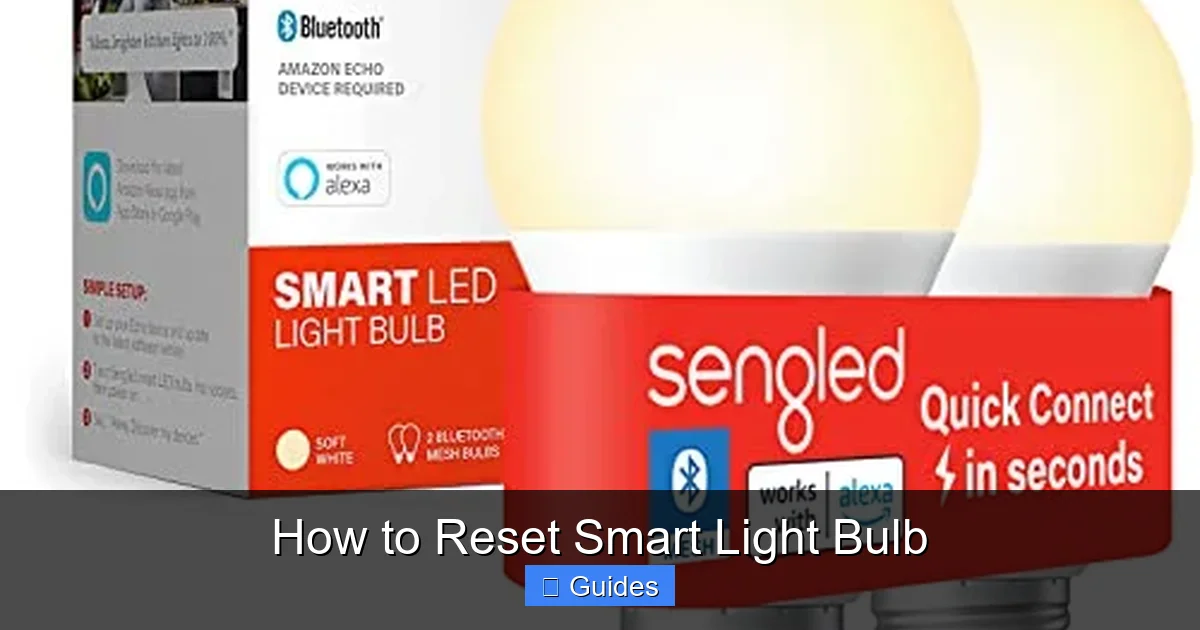
Visual guide about How to Reset Smart Light Bulb
Image source: m.media-amazon.com
Brand-Specific Reset Procedures
While the on-off cycle is widely applicable, some major smart light bulb brands have slightly different or entirely unique reset methods, often integrating with their proprietary hubs or apps. Knowing how to reset a smart light bulb from your specific brand is key.
Philips Hue Bulbs
Philips Hue bulbs are incredibly popular and often require a Hue Bridge. Their reset process is a bit different because they primarily use Zigbee for communication.
Resetting via the Hue App (Recommended)
This is the easiest and most common way to reset a Hue bulb.
- Open the Philips Hue app.
- Navigate to Settings -> Light Setup.
- Select the bulb you wish to reset.
- Scroll down and tap “Delete.” This removes the bulb from your Hue Bridge and system. The bulb will flash and then be ready for a new connection.
Resetting without the Hue App (Using a Dimmer Switch or Hue Smart Button)
If you don’t have access to the app or are moving the bulb to a new Bridge, you can use a Philips Hue Dimmer Switch or Smart Button.
- Bring the Dimmer Switch or Smart Button very close (within a few inches) to the bulb you want to reset.
- Press and hold the “On” and “Off” buttons (I and O) simultaneously on the Dimmer Switch, or the main button on the Smart Button, for about 10 seconds.
- The bulb will blink and then stop. This indicates a successful reset. It’s now ready to be discovered by a new Hue Bridge.
Note: Some newer Hue bulbs can also be reset with the standard 5-second on/off cycle, but the app or dimmer switch method is more reliable for Hue. This method for how to reset a smart light bulb is quite specific.
TP-Link Kasa / Tapo Bulbs
TP-Link’s Kasa and Tapo smart bulbs typically follow the standard on-off power cycle method.
For Kasa Bulbs:
- Turn the light switch off.
- Flip the switch ON for 1 second.
- Flip the switch OFF for 1 second.
- Repeat this sequence 3-5 times (ON-OFF-ON-OFF-ON).
- On the final “ON,” the bulb should rapidly blink three times to indicate a factory reset. It’s now ready for pairing.
For Tapo Bulbs:
The method is very similar to Kasa.
- Turn the light switch off.
- Flip the switch ON for 1 second.
- Flip the switch OFF for 1 second.
- Repeat this sequence 5 times.
- After the fifth ON, the bulb should flash three times to confirm the reset.
Always check the specific model’s manual if the general method doesn’t work, as slight variations can exist for how to reset a smart light bulb from TP-Link.
Sengled Smart Bulbs
Sengled bulbs, whether Zigbee-based (requiring a hub) or Wi-Fi-based, often have a more specific reset procedure.
For Sengled Element / Hub-required Bulbs:
- Turn the bulb ON for at least 10 seconds.
- Turn the bulb OFF for at least 1 second.
- Repeat steps 1 and 2 exactly 8 times. (ON-OFF-ON-OFF-ON-OFF-ON-OFF-ON-OFF-ON-OFF-ON-OFF-ON-OFF-ON)
- After the 8th ON, the bulb should flash three times before turning bright. This confirms the reset.
For Sengled Wi-Fi Bulbs:
- Turn the bulb ON for 3 seconds.
- Turn the bulb OFF for 3 seconds.
- Repeat steps 1 and 2 five times. (ON-OFF-ON-OFF-ON-OFF-ON-OFF-ON-OFF-ON)
- After the final ON, the bulb should flash and then remain brightly lit, signaling a successful reset.
Sengled is a great example of a brand where exact timing and number of cycles are critical for how to reset a smart light bulb successfully.
Govee Smart Bulbs
Govee offers a wide range of smart lighting, and their bulbs generally follow the standard on-off cycle.
- Ensure the bulb is powered on via the light switch.
- Turn the light switch OFF.
- Turn the light switch ON. Wait 2 seconds.
- Turn the light switch OFF.
- Repeat steps 3 and 4 for a total of 5 ON/OFF cycles.
- On the 5th time the bulb is turned ON, it should flash brightly, indicating it has been reset and is in pairing mode.
Some Govee products, like light strips, might have a physical reset button. Always refer to your specific product’s manual for the most accurate instructions on how to reset a smart light bulb.
Using Your App for a Soft Reset or Unpairing
Sometimes, a full factory reset isn’t necessary. If you’re just moving a bulb to a different room, or if it’s connected but misbehaving slightly, simply unpairing it from your app might be sufficient. This is more of a “soft reset” or “remove device” function rather than a full factory reset.
When to Use App-Based Unpairing
This method is ideal when:
- The bulb is still connected to your app but you want to move it to a different group or room.
- You want to unpair it from one hub to pair it with another (e.g., moving a Zigbee bulb from a Hue Bridge to a SmartThings hub).
- You’re encountering minor glitches, and you want to try re-adding it without wiping all its internal firmware settings.
General Steps for App Unpairing
The exact steps will vary depending on your smart home app, but generally, it follows this pattern:
- Open your smart light bulb’s dedicated app (e.g., Philips Hue, Kasa, Govee Home).
- Navigate to the section that lists your devices or lights. This might be called “My Devices,” “Lights,” or “Device Settings.”
- Select the specific bulb you wish to unpair.
- Look for an option like “Remove Device,” “Delete Device,” “Unpair,” or “Factory Reset” (if available as an app option).
- Confirm your choice when prompted.
After unpairing, the bulb might stay on or turn off. You can then try to re-add it to your app as a new device. This is a lighter touch when figuring out how to reset a smart light bulb’s connection.
Troubleshooting Tips After Resetting Your Smart Light Bulb
You’ve gone through the process of how to reset your smart light bulb, you saw the flash of confirmation, but it’s still not connecting or behaving. Don’t despair! Here are some further troubleshooting tips.
Check Your Wi-Fi Network
Many smart bulbs (especially Wi-Fi direct connect ones) only support the 2.4GHz Wi-Fi band, not the newer 5GHz band. Ensure your router is broadcasting a 2.4GHz network and that your phone is connected to it during the pairing process. You might need to temporarily disable the 5GHz band on your router or separate the Wi-Fi names (SSIDs) if you have a combined network.
Restart Your Router and Modem
A simple router and modem reboot can often resolve network congestion or minor glitches that might be preventing your smart bulb from connecting, even after a reset.
Proximity Matters
During the initial pairing process, try to keep the smart light bulb and your phone relatively close to your Wi-Fi router. Once successfully paired, they usually have a decent range, but closer is better for the first connection.
Disable VPN
If you’re using a VPN on your smartphone, temporarily disable it during the pairing process. VPNs can sometimes interfere with local network discovery, making it hard for your app to find the newly reset bulb.
Try a Different Light Fixture
It’s rare, but sometimes a faulty light fixture or a loose connection can prevent a smart bulb from getting consistent power, leading to issues. Try screwing the bulb into a different, known-good lamp or fixture to rule this out.
Update Firmware
Once you get the bulb reconnected, check its app for any available firmware updates. Manufacturers regularly release updates to improve performance, add features, and fix bugs. An outdated firmware could be the root of persistent issues.
Contact Manufacturer Support
If you’ve tried all the above steps for how to reset your smart light bulb and troubleshoot, and it’s still not working, it might be time to reach out to the manufacturer’s customer support. They can offer more specific advice or even confirm if the bulb is defective.
When to Consider a Replacement
While resetting your smart light bulb is a powerful troubleshooting tool, there comes a point when a replacement might be the best option.
Persistent Failures
If a bulb repeatedly fails to reset, refuses to connect after multiple attempts, or keeps dropping its connection despite all your troubleshooting efforts, it might be reaching the end of its life.
Physical Damage
Obvious physical damage, such as a cracked bulb or a loose base, is a clear indicator that a reset won’t help, and it’s time for a new one.
Outdated Technology
Older smart bulbs might lack the necessary hardware or software to keep up with newer smart home ecosystems or Wi-Fi standards. If your bulb is very old and constantly struggling, an upgrade could provide a much smoother experience.
Conclusion
Smart light bulbs offer an incredible array of features that truly enhance our homes. While they generally work flawlessly, encountering connection problems or unresponsiveness is an inevitable part of living with technology. Fortunately, knowing how to reset your smart light bulb is a powerful skill that can resolve most of these issues quickly and efficiently.
Whether it’s a simple on-off power cycle for a generic bulb, an app-based delete for Philips Hue, or a specific sequence for Sengled, understanding your bulb’s particular reset method is crucial. Remember to be patient, follow the steps carefully, and always check for visual confirmation of a successful reset. If a reset doesn’t immediately solve the problem, don’t forget the additional troubleshooting steps, from checking your Wi-Fi to restarting your router. By following this guide, you’ll be well-equipped to tackle any smart lighting hiccups and keep your home glowing brightly.
Frequently Asked Questions
What is the main reason to reset a smart light bulb?
The primary reason to reset a smart light bulb is to resolve connectivity issues, such as the bulb not responding to its app or voice commands, or if you’re changing your Wi-Fi network. A reset clears its previous network settings, allowing it to connect as a new device.
Is it bad to reset a smart light bulb frequently?
No, resetting a smart light bulb frequently is generally not harmful to the bulb’s lifespan or functionality. It’s a standard troubleshooting step. However, if you find yourself resetting it constantly, it might indicate an underlying issue with your network, router, or the bulb itself.
Can a smart bulb be reset if it’s not connected to Wi-Fi?
Yes, a smart light bulb can still be reset even if it’s not connected to Wi-Fi. The common reset methods, like the on-off power cycle, are physical actions that manipulate the bulb’s power, forcing it back to factory defaults regardless of its current network status.
Do all smart light bulbs reset the same way?
No, not all smart light bulbs reset the same way. While many use a variation of the on-off power cycle, specific brands like Philips Hue, TP-Link Kasa, or Sengled often have unique procedures, sometimes involving their dedicated apps, a specific number of cycles, or precise timing. Always consult your bulb’s manual.
What does a smart bulb do after a successful reset?
After a successful reset, a smart light bulb will typically provide a visual confirmation, such as flashing rapidly, blinking a specific color (often white or green), or dimming and brightening. This indicates that it has cleared its settings and is now in pairing mode, ready to be discovered by your smart home app.
Can I reset a smart light bulb if I don’t know the Wi-Fi password?
Yes, you can reset a smart light bulb even if you don’t know the Wi-Fi password for its previous connection. The reset procedure typically relies on manipulating the bulb’s power directly via a light switch, which is independent of its network credentials. Once reset, you’ll need the *new* Wi-Fi password to pair it.
