


As an Amazon Associate, We earn from qualifying purchases.
Transform your home’s atmosphere with ease! This guide walks you through setting up any color changing light bulb, from Wi-Fi and Bluetooth to remote-controlled models. Learn about pre-setup checks, step-by-step pairing, and unlocking features like schedules and voice control to personalize your lighting experience effortlessly.
How to Set Up Color Changing Light Bulb
Are you ready to sprinkle a little magic into your living space? Imagine instantly changing the mood of a room from a calming blue to a vibrant party red with just a tap on your phone or a simple voice command. This isn’t science fiction anymore; it’s the everyday reality of a color changing light bulb. These clever devices have transformed how we think about lighting, moving beyond mere illumination to becoming an integral part of home décor, ambiance, and even personal well-being.
Setting up a color changing light bulb might seem a little daunting at first glance, especially with so many different brands and technologies out there. But fear not! This comprehensive guide is designed to demystify the process, walking you through each step with clear, simple instructions. Whether you’ve just unboxed your very first smart bulb or you’re looking to expand your existing setup, you’ll find everything you need to get your new light shining in its full, colorful glory. Let’s get started on bringing a spectrum of possibilities into your home!
Key Takeaways
- Understand Your Bulb Type: Color changing light bulbs come in various types (Wi-Fi, Bluetooth, Remote Control, Zigbee/Z-Wave). Knowing your bulb’s technology is the first step to a successful setup.
- Preparation is Key: Before you begin, ensure your existing fixtures are compatible, download the correct app, and have your Wi-Fi credentials ready if you’re setting up a smart Wi-Fi bulb.
- Wi-Fi Bulbs Need a Network: For Wi-Fi color changing light bulbs, a stable 2.4 GHz Wi-Fi network is essential. Your phone often needs to be on this same network during the initial pairing process.
- Follow App Instructions Closely: Smart bulbs primarily rely on their dedicated mobile app for setup. Pay close attention to the on-screen prompts for pairing, naming, and assigning to rooms.
- Power Cycling is Your Friend: If your color changing light bulb isn’t responding or pairing, a simple power cycle (turning it off and on a few times) can often reset it into pairing mode.
- Explore Advanced Features: Once set up, dive into the app to discover features like custom colors, preset scenes, scheduling, and integration with voice assistants for a truly smart lighting experience.
- Troubleshoot Systematically: Encountering issues? Check power, Wi-Fi connectivity, app permissions, and try restarting your router or the bulb. Many common problems have simple solutions.
Quick Answers to Common Questions
How do I put my color changing light bulb into pairing mode?
Most color changing light bulbs enter pairing mode by being power cycled (turned off and on quickly) three to five times until they begin blinking rapidly or display a specific color sequence. Always check your bulb’s manual for exact instructions.
Can I set up a Wi-Fi color changing light bulb without the internet?
No, Wi-Fi color changing light bulbs require an active internet connection to connect to your home Wi-Fi network and communicate with their cloud servers for full functionality and remote control.
Why is my smart color changing light bulb only working on 2.4 GHz Wi-Fi?
The 2.4 GHz Wi-Fi band offers a wider range and better penetration through walls compared to 5 GHz. Most smart home devices, including color changing light bulbs, use 2.4 GHz to ensure more stable connectivity throughout your home.
Can I control my color changing light bulb with a physical dimmer switch?
It is strongly advised not to use a physical dimmer switch with a smart color changing light bulb. These bulbs are designed to be dimmed digitally via their app, and a physical dimmer can damage the bulb’s electronics or cause flickering.
What should I do if my color changing light bulb disconnects frequently?
Ensure your Wi-Fi router is close enough to the color changing light bulb, check for interference from other electronics, and verify that the bulb’s firmware is up to date. A Wi-Fi extender might also help improve signal strength.
📑 Table of Contents
- Understanding Your Color Changing Light Bulb: Types and Technologies
- Essential Pre-Setup Checks for Your Color Changing Light Bulb
- Step-by-Step Setup: Wi-Fi Color Changing Light Bulb
- Setting Up Bluetooth and Remote Control Color Changing Light Bulbs
- Exploring Features and Customization for Your Color Changing Light Bulb
- Troubleshooting Common Issues with Your Color Changing Light Bulb
- Conclusion: Light Up Your Life with Color!
Understanding Your Color Changing Light Bulb: Types and Technologies
Before we dive into the nitty-gritty of setup, it’s super important to know what kind of color changing light bulb you’re working with. Different technologies mean different setup methods. Think of it like buying a new gadget – the instructions for a smartwatch are different from a smart speaker.
Wi-Fi Smart Bulbs
These are perhaps the most popular type of color changing light bulb. Wi-Fi bulbs connect directly to your home’s Wi-Fi network, allowing you to control them from anywhere using a smartphone app. They offer a ton of features, including remote control, scheduling, and integration with voice assistants like Amazon Alexa or Google Assistant. Most smart home ecosystems rely on Wi-Fi bulbs.
Bluetooth Smart Bulbs
Bluetooth bulbs connect directly to your smartphone or tablet, usually within a limited range (typically about 30 feet). They are great for individual rooms or smaller setups where you don’t need remote access. Setup is often very simple, as they don’t require a Wi-Fi network or a hub. However, you can’t control them when you’re away from home.
Remote Control (IR/RF) Bulbs
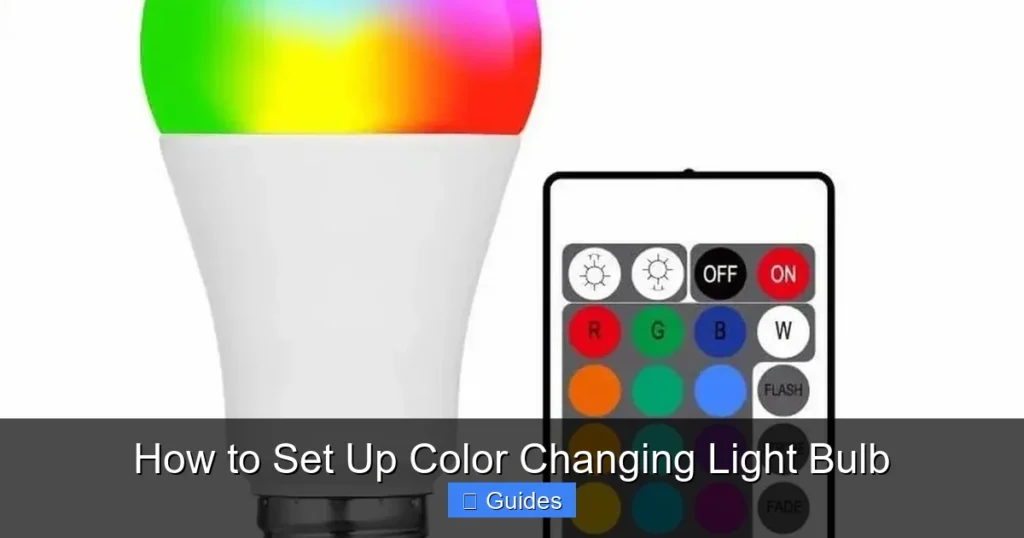
These color changing light bulbs come with their own dedicated physical remote control. They are the simplest to set up – just screw them in and point the remote! They typically offer basic color changes, dimming, and sometimes preset modes. They don’t connect to your Wi-Fi or Bluetooth and aren’t “smart” in the same way, but they are incredibly convenient for straightforward use.
Zigbee or Z-Wave Bulbs (Hub Required)
Some smart color changing light bulbs use protocols like Zigbee or Z-Wave. These are robust, energy-efficient wireless communication standards, but they require a dedicated hub (like a Philips Hue Bridge or SmartThings Hub) to function. The hub then connects to your Wi-Fi network. While the setup might involve an extra device, these systems are known for their reliability, scalability, and ability to create extensive smart home networks.
Knowing which type of color changing light bulb you have will guide you through the correct setup steps. Usually, this information is clearly stated on the product packaging.
Essential Pre-Setup Checks for Your Color Changing Light Bulb
A little preparation goes a long way. Before you even think about screwing in your new color changing light bulb, take a moment to ensure everything is ready. This can save you a lot of headache later!
Check Your Fixture Compatibility
Most color changing light bulbs come with standard E26 (Edison screw) or E27 bases, suitable for most lamps and overhead fixtures. However, some might be GU10 spotlights or other specialized types. Always check that the base of your new color changing light bulb matches your existing fixture. Also, ensure the fixture is non-dimmable. While the bulb itself is dimmable via its app, using a physical dimmer switch can interfere with its electronics and may cause flickering or damage.
Download the Right App (for Smart Bulbs)
If you have a Wi-Fi or Bluetooth color changing light bulb, it will almost certainly require a dedicated app. Do not try to pair it with a generic smart home app first! Look for the app name on the bulb’s packaging or in its instruction manual. Popular brands like Philips Hue, Govee, Sengled, and Wyze each have their own specific app. Download it from your smartphone’s app store (Apple App Store for iOS or Google Play Store for Android) and create an account if prompted.
Prepare Your Wi-Fi Network (for Wi-Fi Bulbs)
This is crucial for Wi-Fi color changing light bulbs.
- 2.4 GHz Network: Most smart bulbs only work on the 2.4 GHz band of your Wi-Fi network, not the 5 GHz band. If you have a dual-band router, make sure you know how to connect your phone to the 2.4 GHz network during the initial setup. Sometimes, separating the SSIDs (network names) for 2.4 GHz and 5 GHz can help.
- Password Handy: Have your Wi-Fi network name (SSID) and password ready. You’ll need to enter these into the app.
- Proximity: During setup, it’s often helpful to be relatively close to your Wi-Fi router. Once set up, the color changing light bulb should work anywhere within your Wi-Fi range.
Unpack and Inspect
Carefully unbox your color changing light bulb. Check for any visible damage. Keep the instruction manual close by; it often contains specific pairing instructions unique to that model.
Step-by-Step Setup: Wi-Fi Color Changing Light Bulb
This is where the magic begins for most modern smart bulbs! Follow these steps carefully to get your Wi-Fi color changing light bulb connected.
Step 1: Install Your Color Changing Light Bulb
First things first: power off the fixture you’re working with. Safety first! Screw your new color changing light bulb into the socket. Make sure it’s snug but don’t overtighten. Once it’s in, turn the power back on. The bulb should light up, usually in a bright white or warm white color. This indicates it has power and is ready.
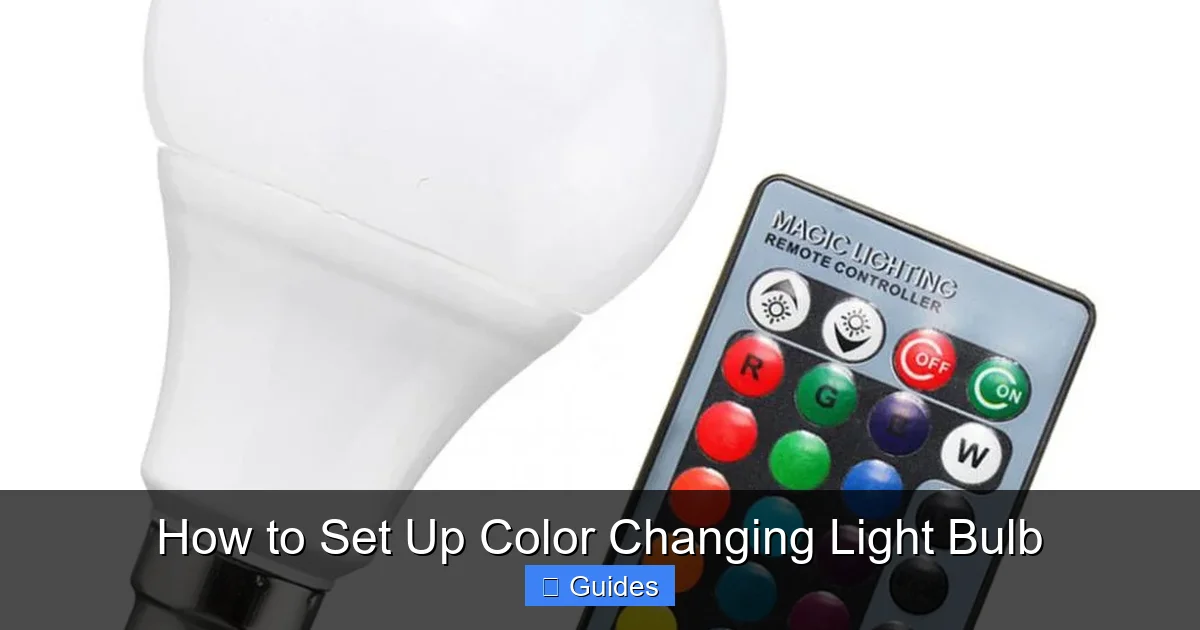
Visual guide about How to Set Up Color Changing Light Bulb
Image source: images.nexusapp.co
Step 2: Put the Bulb into Pairing Mode
Many Wi-Fi color changing light bulbs enter pairing mode automatically when first powered on. However, some require a “power cycle” to initiate pairing mode. This usually involves turning the light switch off and on quickly several times (e.g., three times off/on, waiting a second or two between cycles). The bulb will typically blink rapidly or change color to indicate it’s in pairing mode.
Step 3: Open the App and Add Device
Launch the dedicated app you downloaded earlier. Most apps will have a “Add Device,” “Add Bulb,” or a “+” icon. Tap on this to start the pairing process. The app will usually guide you through the next steps, often prompting you to confirm the bulb is blinking or in pairing mode.
Step 4: Connect to Your Wi-Fi Network
The app will ask for your Wi-Fi network name and password. Remember, ensure your phone is connected to the 2.4 GHz network if your router has both 2.4 GHz and 5 GHz bands. Enter your credentials carefully. The app will then try to find and connect to your color changing light bulb.
Step 5: Complete Pairing and Customization
Once the bulb is found, the app will confirm the connection. You’ll usually be prompted to:
- Name your color changing light bulb: Give it a descriptive name like “Living Room Lamp,” “Bedroom Nightstand,” or “Kitchen Island 1.” This makes it easier to control, especially with voice commands.
- Assign it to a room: Most apps allow you to group bulbs into rooms for easier control of multiple lights at once.
- Update firmware (if prompted): Keep your bulb updated for the best performance and security.
Congratulations! Your Wi-Fi color changing light bulb is now set up and ready to illuminate your world in vibrant hues.
Setting Up Bluetooth and Remote Control Color Changing Light Bulbs
These types of color changing light bulbs offer a much simpler setup process, perfect for those who want quick, no-fuss color changes.
Bluetooth Color Changing Light Bulb Setup
- Install the Bulb: Screw the color changing light bulb into your fixture and turn on the power.
- Enable Bluetooth: Make sure Bluetooth is enabled on your smartphone or tablet.
- Open the App: Launch the bulb’s dedicated app. Unlike Wi-Fi bulbs, Bluetooth bulbs often connect almost instantly once the app is open and you are within range. The app might automatically detect the bulb, or you might need to tap an “Add Device” button.
- Pair: Follow any on-screen prompts to pair the bulb. Sometimes you might need to select the bulb from a list of available Bluetooth devices in the app.
- Name and Use: Once paired, name your bulb and start enjoying its colorful capabilities!
Remember, you’ll need to be within Bluetooth range to control these bulbs.
Remote Control Color Changing Light Bulb Setup
- Install the Bulb: Screw your remote control color changing light bulb into any standard fixture. Turn on the power switch.
- Insert Batteries: Place the batteries into the remote control (if not already installed).
- Point and Play: Point the remote control directly at the bulb. Press any button (like an ON button, or a color button) to confirm it’s working. That’s it!
These bulbs are ideal for simplicity. There’s no app, no Wi-Fi, just direct control with the remote.
Exploring Features and Customization for Your Color Changing Light Bulb
Once your color changing light bulb is set up, the fun truly begins! Smart bulbs offer a wealth of features that go far beyond just turning them on and off.
The Color Wheel and Presets
Most apps will present you with a color wheel or a palette of colors. Drag your finger around to select any shade imaginable. Many also include preset colors like “Warm White” or “Daylight” for practical illumination, and fun presets like “Sunset” or “Ocean.”
Dynamic Scenes and Effects
This is where smart color changing light bulbs really shine. Apps often come with pre-programmed “scenes” that combine multiple colors or dynamic effects. Think “Party Mode” with flashing lights, “Reading Mode” with a soft, focused white, or “Relaxation Mode” with slowly cycling, calming colors. You can often create your own custom scenes too.
Scheduling and Timers
Want your lights to gradually wake you up in the morning with a soft sunrise effect? Or have them turn on automatically when you arrive home? Use the scheduling feature to set specific times for your color changing light bulb to turn on/off, change color, or adjust brightness. Timers are great for setting a light to turn off automatically after you’ve fallen asleep.
Voice Control Integration
If you have a Wi-Fi color changing light bulb, chances are it integrates with voice assistants like Amazon Alexa, Google Assistant, or Apple HomeKit.
- Link Accounts: In your voice assistant’s app (e.g., Alexa app), search for the skill or service associated with your bulb’s brand and link your accounts.
- Discover Devices: Tell your voice assistant to “Discover devices.”
- Control: You can then say commands like, “Alexa, turn Living Room Lamp blue,” “Hey Google, dim the bedroom lights to 50%,” or “Siri, turn on Party Mode.”
Grouping Lights
If you have multiple color changing light bulbs, you can group them together in the app. This allows you to control all lights in a room or area simultaneously, changing their color or brightness with a single command.
Troubleshooting Common Issues with Your Color Changing Light Bulb
Even with the best instructions, sometimes things don’t go perfectly. Here are some common problems and solutions for your color changing light bulb.
Bulb Not Entering Pairing Mode
- Power Cycle: Try the power cycle method again, ensuring you turn the switch off and on quickly but distinctly (e.g., 1 second on, 1 second off, repeat 3-5 times).
- Check Instructions: Refer to your specific bulb’s manual; some have unique power cycle patterns or a reset button.
App Can’t Find the Color Changing Light Bulb
- Wi-Fi Band: Double-check that your phone is connected to the 2.4 GHz Wi-Fi network. This is the most common reason for failure.
- Proximity: Move your phone closer to the bulb and the Wi-Fi router.
- Restart Router: Sometimes, restarting your home Wi-Fi router can resolve connectivity issues.
- Disable VPN: Temporarily disable any VPNs on your phone during setup.
- Reset Bulb: Perform a factory reset on the bulb (usually by a longer, more aggressive power cycle pattern – check manual).
Bulb Disconnects Frequently or Responds Slowly
- Wi-Fi Signal: Your color changing light bulb might be too far from your router, or there might be too many obstacles (thick walls, electronics) interfering with the signal. Consider a Wi-Fi extender.
- Network Congestion: Too many devices on your Wi-Fi network can slow things down.
- Firmware Update: Ensure the bulb’s firmware is up to date through the app.
Colors Are Inaccurate or Dimming Doesn’t Work
- Physical Dimmer: If you’ve installed a color changing light bulb in a fixture with a physical dimmer switch, remove the dimmer or set it to 100% at all times. Physical dimmers interfere with smart bulb electronics.
- App Settings: Check the app for calibration or color temperature settings that might be affecting accuracy.
Voice Control Not Working
- Account Link: Ensure your smart bulb’s account is correctly linked to your voice assistant (Alexa, Google Assistant, etc.).
- Device Discovery: Ask your voice assistant to “Discover devices” again.
- Naming: Use the exact name you gave your bulb in the app when issuing voice commands.
Conclusion: Light Up Your Life with Color!
Setting up your color changing light bulb is a straightforward process once you understand the different types and follow the specific steps for each. From the simplicity of a remote-controlled bulb to the advanced features of a Wi-Fi-enabled smart bulb, bringing dynamic color into your home has never been easier.
Remember to identify your bulb type, prepare your network (for Wi-Fi bulbs), download the correct app, and follow the pairing instructions closely. Don’t be afraid to experiment with the array of colors, scenes, and scheduling options available to truly personalize your living space. With a little patience and this guide, you’ll be enjoying a world of vibrant, customizable lighting in no time. So go ahead, screw in that color changing light bulb, and let your creativity shine!
Frequently Asked Questions
Do all color changing light bulbs need a hub?
No, not all color changing light bulbs require a hub. Wi-Fi and Bluetooth bulbs typically connect directly to your smartphone or home network. Only specific types, like Zigbee or Z-Wave bulbs, usually need a dedicated hub to function.
Can I use my color changing light bulb outdoors?
It depends on the bulb’s rating. Most standard color changing light bulbs are designed for indoor use. If you plan to use one outdoors, ensure it is specifically rated for outdoor or wet conditions to prevent damage and ensure safety.
How do I reset my color changing light bulb to factory settings?
The most common way to factory reset a color changing light bulb is by performing a specific power cycle sequence. This often involves turning the bulb on for a few seconds, then off for a few seconds, and repeating this pattern multiple times (e.g., 3-5 times) until the bulb flashes or changes color to indicate a reset.
Are color changing light bulbs energy efficient?
Yes, most color changing light bulbs are LED-based, making them very energy-efficient. They consume significantly less power than traditional incandescent bulbs and have a much longer lifespan, saving you money on electricity bills and replacements.
Can I control multiple color changing light bulbs at once?
Absolutely! Most smart bulb apps allow you to group multiple color changing light bulbs together, often by room or zone. This enables you to control all grouped lights simultaneously, changing their color, brightness, or scene with a single command.
What if my color changing light bulb doesn’t connect to my 5 GHz Wi-Fi network?
The vast majority of color changing light bulbs are designed to connect only to the 2.4 GHz band of your Wi-Fi network. If your router broadcasts both 2.4 GHz and 5 GHz, make sure your smartphone is connected to the 2.4 GHz network during the initial setup process. You might need to temporarily disable the 5 GHz band on your router or separate the network names (SSIDs) to ensure your phone connects to the correct band.
